Sunday, 17 November 2013

#7 Drag & Drop

Hii..bertemu kembali! Untuk minggu ni kami telah belajar mengenai drag and drop yang menggunakan koordinat. Berikut merupakan langkah-langkah bagi menghasilkan drag and drop :


1. First of all we need to create the 'place' where we want to drag the object. 
2. Click on Menu 'Insert', and choose 'New Symbol'. Name it as place and choose movie clip and click Ok.
3. Choose rectangular shape in the first frame of the movie clip to create the box.
4. Right click on the keyframe and choose 'Actions' and type action script.
stop ( );
5. Right click on the second frame and choose insert keyframe and then also put the stop action script.
6. Draw the "tick" symbol  at the corner of the rectangle.
7. Go back to scene and drag the movie clip name place to the stage and named the layer as response.
8. Rename the instance name of the rectangle as box1. 
9. Repeat step 8 and named the second rectangle as box2.
10. Create movie clip symbol and draw a rectangle and named it as rec. Create another movie clip symbol and named it as circle.
11. Insert action script behind each rectangle and circle.
Action script for rectangle:
on(press){
startDrag(this);
}
on(release){
stopDrag();
if((this._x>=296.4)&(this._x<=481.4)&(this._y>=261.9)&(this._y<=310.9))
{
_root.box2.gotoAndStop (2);
}else{
_root.box2.gotoAndStop (1);
this._x=97.5;
this._y=285.9;
}
}

Action script for circle :
on(press){
startDrag(this);
}
on(release){
stopDrag();
if((this._x>=303.4)&(this._x<=479.4)&(this._y>=98.8)&(this._y<=136.8))
{
_root.box1.gotoAndStop (2);
}else{
_root.box1.gotoAndStop (1);
this._x=99.5;
this._y=97.8;
}
}
12. Test the movie.

Here I capture my result :

#6 Apps 4 : Type of Interactions

Hi guys! What a tired week. Hmm. Setiap hari ada assignment nak kene siapkan. huhu. Jadi kenalah rajinkan diri untuk membuat segala tugasan. Nama pon master student kan? So, be positive ! hehe. 

Okay untuk minggu ini, kak farhana telah menginstallkan kami apps 4 untuk ipad dan kami juga diberi tugasan bagi apps 4 untuk dibuat dan diupload ke facebook. Berikut merupakan tugasan bagi apps 4 :

TASK 1: Create a multiple choice questions that will provide a correct or incorrect response upon your answer.

Steps:
  1. Name layer as Question.
  2. Choose text tool -->choose static text-->start typing the question
  3. Insert new layer-->name layer as buttons
  4. Create button using oval tool-->drag it on stage-->choose appropriate color-->resize the button
  5. Choose text tool-->Put 'A' on top of the button
  6. Select whole button-->click modify-->convert it to symbol-->name the button as button A-->choose button type-->OK
  7. Same goes to others 3 button (buttonB,buttonC,buttonD)-->choose appropriate color and resize each button(same size as buttonA)-->convert all the buttons to symbol and choose button type.
  8. Insert new layer-->name as respon.
  9. Choose text tool-->choose dynamic text-->put respon as it variable
  10. Inser another layer-->name as action-->put action script by right click and choose actions.The action script:
         stop();
        var respon;
        respon = " "

    11. Since the answer is A-->right click-->choose actions-->type in the action script below:
          The action  script:

          on(release){
          respon = "Congrates, Your answer is correct!";
           }

    12. Do the same step for buttonB,C and D (repeat right click-->choose actions-->type in the
          action script-->just edit the respon according what you want it to be.
    13. Control-->test movie-->done.


TASK 2 : Create one application that allows user to type an input of question provided.

Steps:

  1. Prepare your background
  2. Choose rectangel tool-->fill with color-->drag on to the stage
  3. Choose text tool to type in topic question by make sure it is static type-->name layer as background
  4. Insert new layer-->name as question
  5. Choose text tool-->choose static type-->type in questions
  6. Then, select rectangle tool and create a box on stage
  7. Select text tool-->preposotion ir and make sure selecting input text in the properties
  8. SElect text tool again-->but now choose dynamic text
  9. Insert new layer-->name as buttons
  10. From library paner-->choose play button-->drag to stage-->resize the button
  11. Insert new ;ayer and name it as stop.
  12. Right click on first keyframe and choose actions.Type in the action script below.
         The action script:
         stop();
         var answer;
         answer =" "
         respon = " "

   13. Select button-->right click-->choose actions.Type in the action script below.

         The action script:
         on(release){ if(answer =="print client") {respon="Correct!";}
         else{
         respon ="Incorrect,your answer"+answer+"is wrong";
         }
         }
         on(release,kerPress"<Enter>"){if(answer=="print client"){respon="Correct!";}
         else{
         respon ="Incorrect,your answer"+anwser+"is wrong";
         }
         }
    14. In the input text field-->type in 'answer' for it variable
    15. In the dynamic text field-->type in 'respon' for it variable
    16. Control-->test movie-->done.


TASK 3: Create a Main Menu that contain following actions:
  • A button that navigate from one page to another.
  • A button that navigate from one scene to particular frame of different scene.
  • A button that navigate users to other webpage.
  1. Create the background-->insert logo image,header for the website and button(home,the novels and about)
  2. Next, click on the 'Home' button--> go to properties-->type in 'home' in the instance name field. Repeat this for the other two button, but do change the instance name according to the button name.
  3. Duplicate scene. To do this, go to window-->other panels-->scene--> rename it from scene1 to scene2
  4. Select scene2-->choose text tool-->type in the description
  5. Do the same step as step 4 for scene 1.
  6. Test the movie.Here we can see that the description that we create are keep repeating non-stop. Hence, we insert the action script at the button frame.
         Action script : stop();
     7.  Testing again.
     8.  Before we do that, we insert frame for all layer (until frame no 15) in scene1. Same goes
          to scene 2.
    9.  In scene 2, insert new layer-->name as novel-->go to properties-->in the same field, type
         'novel'. On the novel layer, it shows the name of frame that we type in. 
   10.  Still in the scen2, insert new layer-->name as stop-->right click on the first frame-->
          choose actions--type action script 'stop();'.
   11.  Now, change to scene 1, right click on the 'The novels' button-->choose actions. Type
         action script:
   12.  The action script :
              on (release){
          gotoAndPlay("Scene2", 1);
                     }  
     13.  Test the movie-->click on the'The novels' button, it will show novel page. But when
            click on the home button, nothing happen. It is because we not insert the
             action script yet.
    14.  To do this, we change from scene 1 to scene 1, then we right click the 'home' button-->
           choose actions. Type in the action script.

             on(release){
                    gotoAndStop("Scene1", 1);
              }

    15. Testing the movie again. Now try click on the home button and novel button. It will
          show the pages.
    16. To activate button 'About' in scene 1-->right click the about button-->choose action.
          Type in the action script.

          on(release) {
                getURL("http://www.jemariseni.com/");
          }


TASK 4 : Based on your own creativity, create a simple flash application that involves drag and drop function.

Steps:

  1. Draw 3 rectangle named red, yellow and blue.
  2. Select the rectangle-->click modify-->convert it to symbol-->name as redrec-->choose movie clip type-->ok
  3. Repeat step 2 for each rectangle.
  4. Insert new layer-->name as round
  5. Draw 3 circle-->select the image-->convert it to symbol-->name as redround,yellowround and blueround-->choose movie clip-->ok.
  6. Since we want to drag the circle to the rectangle, then, right click on the redround-->choose actions. Type in the action script below.
  7. The action script :

    on (press) { startDrag(this,true);} on (release) { stopDrag(); }
  8. Repeat step 5 and apply to yellowround and blueround.
  9. Control-->test movie--> done.

Monday, 28 October 2013

#Sharing About Photosynthesis (Light reactions)


 Embed Video: Photosynthesis (Light reactions)

Hello everyone!
I would like to share a video about Photosynthesis (Light reactions).

             
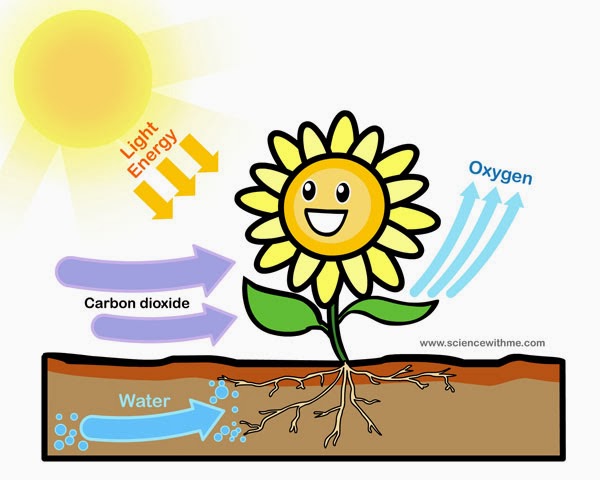
             Photosynthesis is the means by which plants make use of chlorophyll and light to produce energy. This section gives an overview of the the basic stages in the light reactions of the photosynthetic electron transport chain.

          This video use structured inquiry theory. Structured inquiry is a guided inquiry mainly directed by the video. Typically, this results in a cookbook lesson in which students follow video directions to come up with a specific end point or product. Sometimes this approach is appropriate to use in the classroom; however, student engagement in the task is limited to following video instructions. Simply following directions in a cookbook manner does not actively engage students’ minds. 


 Advantage : 
    1. The simulation used to show the Photosynthesis (Light reactions) is interesting and easy to understand.
    2. Use simple English.
    3. The flow of the lesson is very smooth.
    4. The lesson is related to daily life concept about plant.
    5. The voice and sounds are very clear. 

Disadvantage :
    1. This video does not promote open inquiry learning because there have no question to make students think and explore about this knowledge.

    Wednesday, 16 October 2013

    #5 Wacom : Digital Drawing Tablet

    Haii...! Okay untuk minggu ni Prof. Zaida telah memberi kami wacom drawing tablet sorang satu untuk memudahkan proses kami melukis di dalam adobe flash ini. Haaa...ni la dia rupa WACOM digital drawing tablet tu....

    Aplikasi Penggunaan Digital Drawing Tablet

    Zoom in Digital Drawing Tablet

    Maka, pada minggu ini kami pun mula belajar dan menyesuaikan diri melukis dengan menggunakan WACOM ini. Pada yang tidak mahir dan tidak pernah menggunakan WACOM seperti saya ini agak sukar ye untuk melukis menggunakan WACOM ni. hehe.Tapi, bak kata orang "practices makes perfect". Jadi saya perlu banyak praktis lagi untuk menjadikan lukisan saya lebih cantik dan sempurna.

    Untuk minggu ke-5 ni juga kami mula belajar untuk apps 3 dan 4 di dalam Ipad yang diberi. Kami diberi tugasan atau aktiviti untuk dilakukan didalam kelas dengan menggunakan apps 3 tersebut. Berikut merupakan hasil tugasan yang saya lakukan berserta langkah-langkahnya sekali :)


    Task 1 : Motion tweening


    Steps :
    1. Draw a circle. double click it to make sure the shape and the stroke is together.
    2. Go to frame 25 and insert keyframe. Drag the circle to the place that u want to move it.Resize the circle if u want. You also can change the alpha, brightness and many more to change the color of the circle.
    3. Repeat step 2 according to the number of times you want to move the circle.
    4. Go to any frame between 1 to 25; for example  12, then right click and select create motion tweet. Repeat this step at every range of frame that you have done.
    5. Next, click control on the menu bar and select test movie to view your animation.
    6. Finally, you can save your animation.


    Task 2 : Shape tweening

    Steps:
    1.Type the text you want using text tool.
    2. Go to modify and then click break apart.
    3. Repeat step 2.
    4. Go to frame 25 and insert keyframe.
    5. Delete the text.
    6. Draw the star using polystar tool. Double click at it to make sure the shape and the stroke are together.
    7.Go to the center between frame 1 until 25, for example frame 12; then go to properties and click tween and change it to shape.
    8. Next, click control on the menu bar and select test movie to view your animation.
    9. Finally, you can save your animation.


    Task 3 : Motion guided


    Steps:
    1. Draw the ant.
    2. Convert the ant to movie clip.
    3. Choose a key frame (example: keyframe no.50)
    4. Place the and at the new position at keyframe 50.
    5. Right click between the keyframe and create motion tween.
    6. Rename the layer as ant.
    7. Create motion guide.
    8. Use pencil to draw the guide
    9. Select first key frame and click the ant at the cente and move it at the starting point of the guide.
    10. For the last key frame, move it at the last point of the guide.
    11. Use transform tool to adjust the position for certain keyframe,
    12. Tick the orient to path at the first key frame.
    13. Test movie.


    Task 4 : Frame by frame

    Steps:
    1. Design the cartoon (same cartoon) with different expression..
    2.Save every image in the library by convert it to symbol.
    3.Put the first image in keyframe 1..
    4.For next keyframe which are keyframe 2 and so on, insert another image.
    5. Test movie.
    6. Save.

    Okay..rasanya itu sahaja yang ingin saya kongsikan untuk minggu ini. Sambung minggu depan pulak ye. Hehe :)

    #4 Class di Facebook

    Helloo...!! Hah..utk minggu ni class authoring xde. Jadi kami ber'class' di Facebook. Hehe  :) Untuk tugasan seterusnya, kami perlu membuat aktiviti 2. Kami juga perlu meng'explore' serta menggunakan onion skin tool dan menukarkannya kepada graphic symbol. Konsep bagi onion skin tool adalah 'tracing' ataupun menekap.

    Dalam onion skin tool ini kita akan menghasilkan satu grafik dari grafik yang asal dengan mengurangkan opacity untuk frame semasa dan mula menekap pada frame kedua. Gambar dibawah ini merupakan hasil percubaan pertama tracing saya. :)


    Seperti yang ditunjukkan diatas, lukisan grafik yang sebelah kanan merupakan hasil tracing saya manakala yang sebelah kiri merupakan gambar original. Antara tools yang saya gunakan untuk melukis doremon ini adalah line tool, oval tool dan pencil tool. Bagi proses mewarna pula, seperti biasa saya menggunakan paint bucket tool. Oh yaa..utk menekap or 'trace image' doremon ni..ada beberapa langkah. Iaitu :

    1. Import the pic doremon to library.
    2. Insert keyframe dalam frame yg ke-2.
    3. clik onion skin tool. The real doremon will appear dalam keadaan kabur.
    4. To trace the image, use pencil tool and brush tool.
    5. To trace the image closely, we can zoom in and out.
    6. After done trace the image, we remove keyframa dalam frame yg pertama.
    7.We can color the image using paint bucket tool.
    8. Then, clik modify. Select convert to symbol and choose grafik.
    9. Done! :)


    Okay..tugasan ini juga perlu di'upload' di dalam facebook utk dikongsi bersama kawan-kawan yang lain. Sambung minggu depan pulak k. Byeeee! :)

    #3 Apps Flash

    Haiiii..! Hah..minggu ni kami diajar menggunakan ipad yang telah di'install'kan beberapa apps bagi membantu pembelajaran mengenai flash. Untuk minggu ini, kami belajar apps 1 dan 2 dan membuat dua aktiviti yang berkaitan dengan apps tersebut. Bagi apps 1, ia lebih kepada pengenalan kepada interface dalam Adobe Flash. Dibawah ini merupakan interface bagi apps 1 di dalam ipad..


    Seperti yang dapat dilihat dalam gambar di atas, dalam apps 1 kami banyak belajar mengenai interface dalam flash, aplikasi dalam flash serta jenis-jenis interaksi. Dibawah ini pula adalah interface bagi apps 2. Secara umumnya dalam apps 2 ini kami belajar mengenai basic drawing, coloring dan juga drawing button.


    Macam yang saya dah katakan sebelum ini, setiap satu apps ini kami diberikan satu aktiviti. Untuk apps 1, kami diberi aktiviti satu iaitu berkaitan dengan pengenalan berkenaan interface dalam flash. Kami juga perlu menyatakan jenis interaksi yang ada serta fungsinya. Manakala, aktiviti 2 yang berkaitan dengan apps 2, kami telah membuat aktiviti berkaitan dengan drawing. Dalam aktiviti ini, kami perlu melukis mengikut guide gambar yang diberikan serta menjelaskan jenis tool yang kami gunakan dalam melukis dan mewarna. Dibawah ini merupakan gambar yang perlu kami lukis.

    Maka, saya pun mencuba la untuk membuat aktiviti ini.  Dalam aktiviti ini saya menggunakan line tool dan shape tool untuk melukis dan paint bucket tool untuk mewarna. Untuk mendapatkan tone warna, kita boleh mengubah warna tersebut di ruangan 'color'. Dibawah ini merupakan hasil lukisan saya yang tak pandai dalam art ni. hehehe. jangan gelak k? Hihi :p
    Lukisan ini juga perlu diupload di dalam facebook sebagai assignment kami yang pertama. Untuk melukis gambar ni, saya menggunakan beberapa tools. Which are ;

    1. Line tool-use to draw line
    2. Selection tool-use to select an object, create curve line & selection rectangle
    3. Oval shape- use to draw circle (window & door)
    4. Rectangle tool- use to draw house
    5. Free transform tool- use to resize the object
    6. Eraser tool- to erase unwated line and fill of shape
    7. Eyedropper tool- to pick colour out of scene
    8. Paint Bucket tool- to paint the object with gradient fill
    9. Stroke color tool- to change the stroke colour of object
    10. Fill color tool- to change the fill colour's of object
    11. Zoom tool- use to zoom in or out of the stage
    12. Text tool- use to insert static text ("Fatin Deen")


    Okay..itu sahaja tugasan minggu ni. Hehe Btw, next week Prof. Zaida xde. Beliau ada outstation kat budapest, Hungary. Jadi class kami terpaksa di'cancel'kan.huhu Walaubagaimanapun, kami diberi beberapa tugasan yang akan diberikan oleh akak nurul farhana di dalam facebook. :)

    #2 Basic Adobe Flash CS3 Professional

    Sebenarnya aku quite excited nak blaja flash ni sebab tgk mcm best je hasil dari orang yang guna flash. huhu. Orang xde basic la katakan..hehe. So, in this class i will try my best to learn about flash. Dalam kelas minggu ini, kami hanya diperkenalkan dengan adobe flash. Kemudian, Prof. Zaida menyuruh kami untuk mempelajari dengan sendiri sedikit sebanyak tentang flash. Prof. Zaida juga ada menerangkan serba sedikit mengenai sejarah adobe flash yang sebelum ini dipunyai oleh macromedia dan kemudiannya telah dibeli oleh adobe pada tahun 2005.

    This week juga kitorang mula belajar flash. Untuk kali ini, Prof. Zaida telah memberi kami ipad bagi membantu proses pembelajaran kami dalam flash. Setiap pelajar diberi satu ipad. Kemudian, Prof. Zaida memberi kami test untuk mengetahui tahap pengetahuan asas kami mengenai flash. Bagi saya yang tiada basic mengenai flash, memang agak sukar la untuk menjawab soalan-soalan yang diberikan. hehe. Nasib sebelum ini saya ada pengalaman menggunakan adobe photoshop dan ada beberapa tools yang hampir sama function dengan adobe flash. Itu pon sikit2 je lah kan. hehe. So, lepas ni harus belajar lebih lagi pasal flash ni. huhu. Sebelum class tamat, sempat aku bergambar bersama Prof. Zaida dan ipad yang baru dapat. Hehe Rasa seronok sangat class authoring ni. :)

    Bersama Prof. Zaida & ipad. Hehe :)